【Jetpack Compose】mutableStateOf(list) と mutableStateListOf() の違いと使い分け

Jetpack Composeでリストを扱う際、多くの開発者が最初にぶつかる壁が
「mutableStateOf(list) と mutableStateListOf() どっちを使えばいいの?」
という疑問です。

この記事では、両者の型、構造、そして「なぜあの書き方は動かないのか?」という落とし穴についてスッキリ整理して解説します。


🤔【結論】一目でわかる比較表


🤔 mutableStateOf(listOf<T>())

型の構造:箱ごと入れ替えるスタイル

mutableStateOf は「値(value)」そのものを監視します。リストを扱う場合、中身は不変(Immutable)な List であることが前提です。

型 :
MutableState<List<T>>

変更方法:
state.value = state.value + "A"

リストの中身をいじるのではなく、「新しいリストを作成して、Stateという箱に入れ直す」ことでComposeに通知します。


🤔 mutableStateListOf<T>()

型の構造:中身の動きを監視するスタイル

mutableStateListOf は、それ自体が MutableList のように振る舞い、内部の要素が追加・削除されたことを Compose に直接伝えます。

型 :
SnapshotStateList<T>

変更方法:
list.add("A"), list.remove("B")

リスト自体を再代入する必要はありません。addremove を実行するだけで、Compose が自動的に変更を検知して再描画してくれます。


🤔 実務での使い分け

mutableStateOf(list) を使うケース

主に UI State をデータクラスで一括管理する場合です。

・ Flow から combine して State を生成する
data class を用いた一方向データフロー(UDF)設計


data class MyUiState(
    val items: List<String> = emptyList()
)

// ViewModelなどで管理
var uiState by mutableStateOf(MyUiState())

mutableStateListOf() を使うケース

リストそのものが「動的な操作の主体」である場合です。

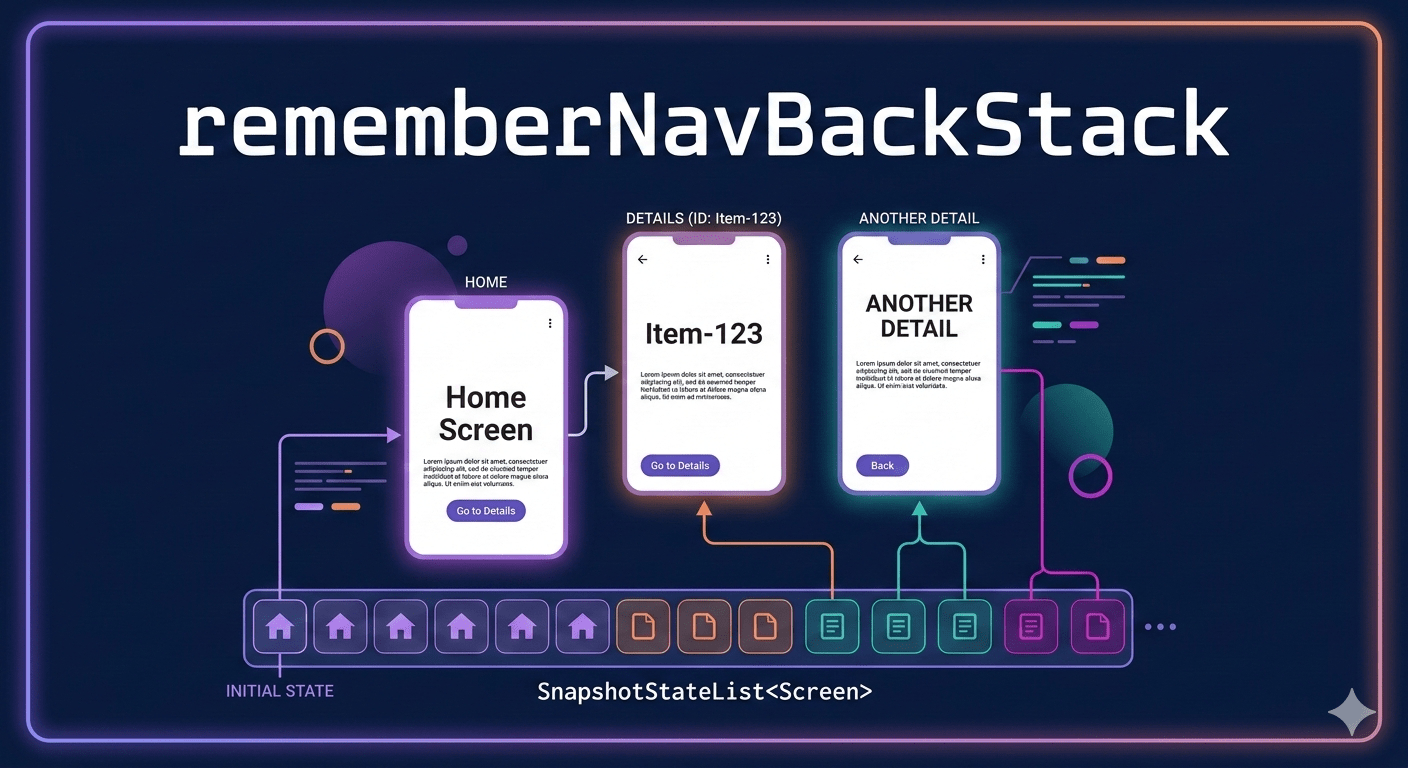
Navigation3rememberNavBackStack()
・ 要素の追加・削除が頻繁に発生する編集画面やスタック操作


🤔 まとめ

基本的には
「UI全体の状態管理なら mutableStateOf」
「リスト個別の動的操作なら mutableStateListOf」
と使い分けるのがスマートです。


Jetpack Compose Navigation3:rememberNavBackStack で実現する宣言的ナビゲーション

Jetpack Compose の次世代ナビゲーションライブラリ Navigation3 では、従来の NavHost と文字列ベースのルート定義から脱却し、より "Compose らしい" 状態管理へと進化しました。

その中核を担うのが rememberNavBackStack です。今回は、この新しい API の「型」の意味と、それを使った最小構成のサンプルコードを解説します。


🧑🏻‍💻 rememberNavBackStack の型とその正体

まず、この関数が何を返しているのかを確認しましょう。


val backStack: SnapshotStateList<T> = rememberNavBackStack(initialBackStack)

この関数が返す型は、Compose 独自の SnapshotStateList です。


🧑🏻‍💻 なぜこの型なのか?

オブザーバブル(監視可能): SnapshotStateList は、リストの中身(要素の追加や削除)が変化したことを Compose のランタイムに通知します。これにより、スタックを操作した瞬間に NavDisplay が自動的に再描画されます。

保存と復元: rememberNavBackStack は内部で rememberSaveable の仕組みを利用しています。つまり、画面回転やプロセスの再起動が発生しても、ナビゲーションの履歴(スタック)が消えずに保持されることを意味します。

直感的な List 操作: MutableList インターフェースを継承しているため、開発者は add()removeLast()clear() といった標準的なメソッドで遷移をコントロールできます。


🧑🏻‍💻 実装サンプル

1. 画面(デスティネーション)の定義
スタックに積むデータ型を sealed interface で定義します。


sealed interface Screen {
    data object Home : Screen
    data class Details(val id: String) : Screen
}

2. ナビゲーションの構築


@Composable
fun MyNavigationApp() {
    // initialBackStack で最初の画面を指定
    // 戻り値はスタックの状態を保持する SnapshotStateList<Screen>
    val backStack = rememberNavBackStack(initialBackStack = listOf(Screen.Home))

    NavDisplay(
        backstack = backStack,
        onBack = { 
            // スタックが2つ以上あれば、最後の要素を取り除いて「戻る」
            if (backStack.size > 1) {
                backStack.removeLast() 
            }
        }
    ) { screen ->
        when (screen) {
            is Screen.Home -> HomeScreen(
                onNavigateToDetails = { id -> 
                    // 1. 新しい画面をスタックに add するだけ
                    backStack.add(Screen.Details(id)) 
                }
            )
            is Screen.Details -> DetailsScreen(
                id = screen.id,
                onBack = { 
                    // 2. 現在の画面を remove するだけで戻れる
                    backStack.removeLast() 
                }
            )
        }
    }
}


🧑🏻‍💻 まとめ

Navigation3 において、rememberNavBackStack は単なる「履歴リスト」ではなく、「アプリの現在の状態そのもの」を管理するハブです。

型安全: 任意のオブジェクト(Screen)をスタックに積める。

宣言的: スタックの状態が変われば、UI(NavDisplay)が同期して変わる。

堅牢: SnapshotStateList により、構成変更(回転など)にも強い。

これまでの NavController による命令的な遷移から、「スタックというデータを操作する」という Compose 本来の作法へ。Navigation3 は開発体験を大きくシンプルにしてくれます。


Jetpack Compose Foundation サンプル目次リンク

Jetpack Composeの核心を担う androidx.compose.foundation

そのサンプルコード群は、Googleのエンジニアが「正しい書き方」を提示している宝庫です。

今回は、これらを実務での利用頻度とモダンな設計(2026年現在のトレンド)に基づいてグループ分けしました。


🧑🏻‍💻 1. インタラクション & ジェスチャー(操作感のキモ)

ユーザーが画面に触れた時の挙動を制御する、最も重要なグループです。


🧑🏻‍💻 2. スクロール & リスト(データの表示)

効率的にスクロールさせるためのテクニック集です。


🧑🏻‍💻 3. テキスト & 入力(文字の表示と編集)

2026年のトレンドである「次世代入力」が含まれます。


🧑🏻‍💻 4. 描画 & 視覚効果(見た目のクオリティ)


🧑🏻‍💻 5. 高度なシステム統合・同期


🧑🏻‍💻 これだけは読んでおくべきトップ5

1. ClickableSamples.kt(すべての基本)
2. LazyDslSamples.kt(リスト表示の要)
3. AnchoredDraggableSample.kt(モダンなUIに必須)
4. BasicTextFieldSamples.kt(入力の実装)
5. CanvasSamples.kt(カスタムUIの第一歩)

ぐらいか。


[Jetpack Compose] Implement "Pull-to-Refresh" with the New PullToRefreshBox

The "Pull-to-Refresh" gesture is a staple in Android app UI.

While we previously relied on Modifier.pullRefresh, Jetpack Compose has introduced PullToRefreshBox in Material 3 as the new standard. It's more intuitive and requires much less boilerplate code.

In this post, we’ll quickly cover everything from basic implementation to customization!


🧑🏻‍💻 1. Prerequisites

PullToRefreshBox is available in Material 3 (version 1.3.0 or later).

Make sure to check your build.gradle dependencies:


dependencies {
    implementation("androidx.compose.material3:material3:1.3.0")
}


🧑🏻‍💻 2. Basic Implementation Pattern

The best part about PullToRefreshBox is that it encapsulates both the refresh logic and the indicator UI into a single component.


@Composable
fun RefreshableListScreen() {
    var isRefreshing by remember { mutableStateOf(false) }
    val scope = rememberCoroutineScope()
    val items = remember { mutableStateListOf("Initial Item A", "Initial Item B") }

    PullToRefreshBox(
        isRefreshing = isRefreshing,
        onRefresh = {
            scope.launch {
                isRefreshing = true
                // Perform your refresh logic (e.g., API calls)
                delay(2000) 
                items.add(0, "New Item ${items.size + 1}")
                isRefreshing = false
            }
        }
    ) {
        LazyColumn(Modifier.fillMaxSize()) {
            items(items) { item ->
                ListItem(headlineContent = { Text(item) })
            }
        }
    }
}

Key Highlights

  • isRefreshing: A boolean that controls the visibility of the refresh indicator.
  • onRefresh: The callback triggered when the user performs the pull gesture.
  • Content Size: Ensure your scrollable content (like LazyColumn) uses Modifier.fillMaxSize() so the pull gesture is detectable across the entire area.


🧑🏻‍💻 3. Practical Usage with ViewModel

In a production environment, it's best practice to let a ViewModel handle the state.


class MyViewModel : ViewModel() {
    var isRefreshing by mutableStateOf(false)
        private set

    fun refreshData() {
        viewModelScope.launch {
            isRefreshing = true
            // Simulate network call
            isRefreshing = false
        }
    }
}

val viewModel: MyViewModel = viewModel()
PullToRefreshBox(
    isRefreshing = viewModel.isRefreshing,
    onRefresh = { viewModel.refreshData() }
) {
    // ... Content
}


🧑🏻‍💻 4. Customizing the Design

If you want to change the indicator's color to match your brand, use the indicator parameter.


PullToRefreshBox(
    isRefreshing = isRefreshing,
    onRefresh = { /* ... */ },
    indicator = {
        PullToRefreshDefaults.Indicator(
            state = it,
            isRefreshing = isRefreshing,
            containerColor = Color.DarkGray, // Background color
            color = Color.Cyan              // Progress spinner color
        )
    }
) {
    // ...
}


🧑🏻‍💻 Conclusion: Simplified Refresh Logic

With the arrival of PullToRefreshBox, implementing this common UI pattern has never been easier.

  • Use Material 3 1.3.0+.
  • Pass the state (isRefreshing).
  • Handle the logic in onRefresh.

That’s it! You now have a modern, native-feeling refresh experience.


Modernizing Android Build Scripts: Moving from "android { ... }" to "configure { ... }"

In the world of Android development, Kotlin DSL has become the standard for writing build scripts.

While the familiar android { ... } block works perfectly for simple projects, as your project grows and you start sharing build logic across multiple modules (e.g., using Convention Plugins), you might find it a bit limiting.

Today, we’ll look at why and how to switch to the more explicit and scalable configure<ApplicationExtension> syntax.


🧑🏻‍💻 1. Why Make the Switch?

The standard android { ... } block in build.gradle.kts is actually a "shorthand" provided by the Android Gradle Plugin (AGP). While convenient, using configure<T> offers several advantages:

  • Better Type Safety: By explicitly telling Gradle that "this block is an ApplicationExtension," the IDE (Android Studio) can provide more accurate code completion and error highlighting.
  • Scalable Build Logic: If you are moving common logic into buildSrc or external plugins to keep your Gradle files DRY (Don't Repeat Yourself), using the explicit extension type becomes essential for writing clean, reusable functions.


🧑🏻‍💻 2. The Transformation: Before vs. After

Let’s compare the standard approach with the explicit configuration style for an App module.

Before: The Standard android Block


// app/build.gradle.kts
android {
    compileSdk = 35
    defaultConfig {
        applicationId = "com.example.myapp"
        minSdk = 26
        targetSdk = 35
    }
}

After: Using configure<ApplicationExtension>
Note that you will need to import the ApplicationExtension class explicitly.


// app/build.gradle.kts
import com.android.build.api.dsl.ApplicationExtension

configure<ApplicationExtension> {
    compileSdk = 35
    defaultConfig {
        applicationId = "com.example.myapp"
        minSdk = 26
        targetSdk = 35
        // ...
    }
}


🧑🏻‍💻 3. Choosing the Right Extension Type

Not every module is an "Application."

You should choose the extension type that matches your module's purpose:

[!TIP]
Use CommonExtension when writing shared logic that applies to both your App and Library modules (like Java versioning or Compose options).


🧑🏻‍💻 4. Practical Implementation: Reusable Build Logic

The true power of this syntax shines when you extract common configurations into a function, such as in buildSrc.


// Example of a shared configuration function in buildSrc
import com.android.build.api.dsl.ApplicationExtension
import org.gradle.api.Project

fun Project.configureAndroidApplication() {
    extensions.configure<ApplicationExtension> {
        compileSdk = 35
        defaultConfig {
            minSdk = 26
            // ...other shared settings
        }
    }
}

By defining your build logic this way, your module-level Gradle files stay thin and highly maintainable.


🧑🏻‍💻 Conclusion

The traditional android { ... } block is great for its brevity. However, once your project reaches a certain scale and you start treating your build configuration as "real code," switching to configure is the way to go.

It brings better IDE support, type safety, and makes your build logic much easier to share across modules.